Demo environmentWorkspace: demoadmin.rent-radar.com
Communication & MailboxGuest-experience teams and adminsmailboxValidated 73a3bb9

Triage mailbox and support conversations without losing ownership

Use the mailbox as an operational queue so guest messages, support requests, and next actions stay visible to the team.

Before you start

Mailbox is most useful when it behaves like a queue with ownership, not just a message archive.

  • A workspace is selected.
  • Your role can open mailbox routes.

When to use this article

  • A message, support request, or follow-up needs visible ownership.
  • The team is switching between guest communication and internal response work.
  • A notification should become a clear conversation or action trail.

Applies to

  • Mailbox
  • Support chat
  • Notification follow-up

Roles

  • Admin
  • Manager
  • Editor

Run the triage routine

  1. 1

    Open Mailbox and review unread or high-priority threads first.

  2. 2

    Confirm the thread belongs to the active workspace and property context.

  3. 3

    Reply, reassign, or convert the issue into the right operational workflow.

  4. 4

    Leave the mailbox only after the next owner and next action are clear.

Protect response quality

  • Keep support and guest-response language concise and operationally useful.
  • Use mailbox when the next step depends on communication history.
  • Use tasks, incidents, or bookings when the next step depends on state change.
Expected result

  • Mailbox work is triaged instead of silently accumulating.
  • Ownership and next steps are visible to the wider team.

Troubleshooting

  • If mailbox opens in the wrong context, confirm workspace and property scope first.
  • If the user lacks mailbox capability, route the request to an admin instead of assuming data loss.
  • Capture the property, route, and failed step before escalating a support issue.

Guided screenshots

Reference views for this workflow.

communication workspace
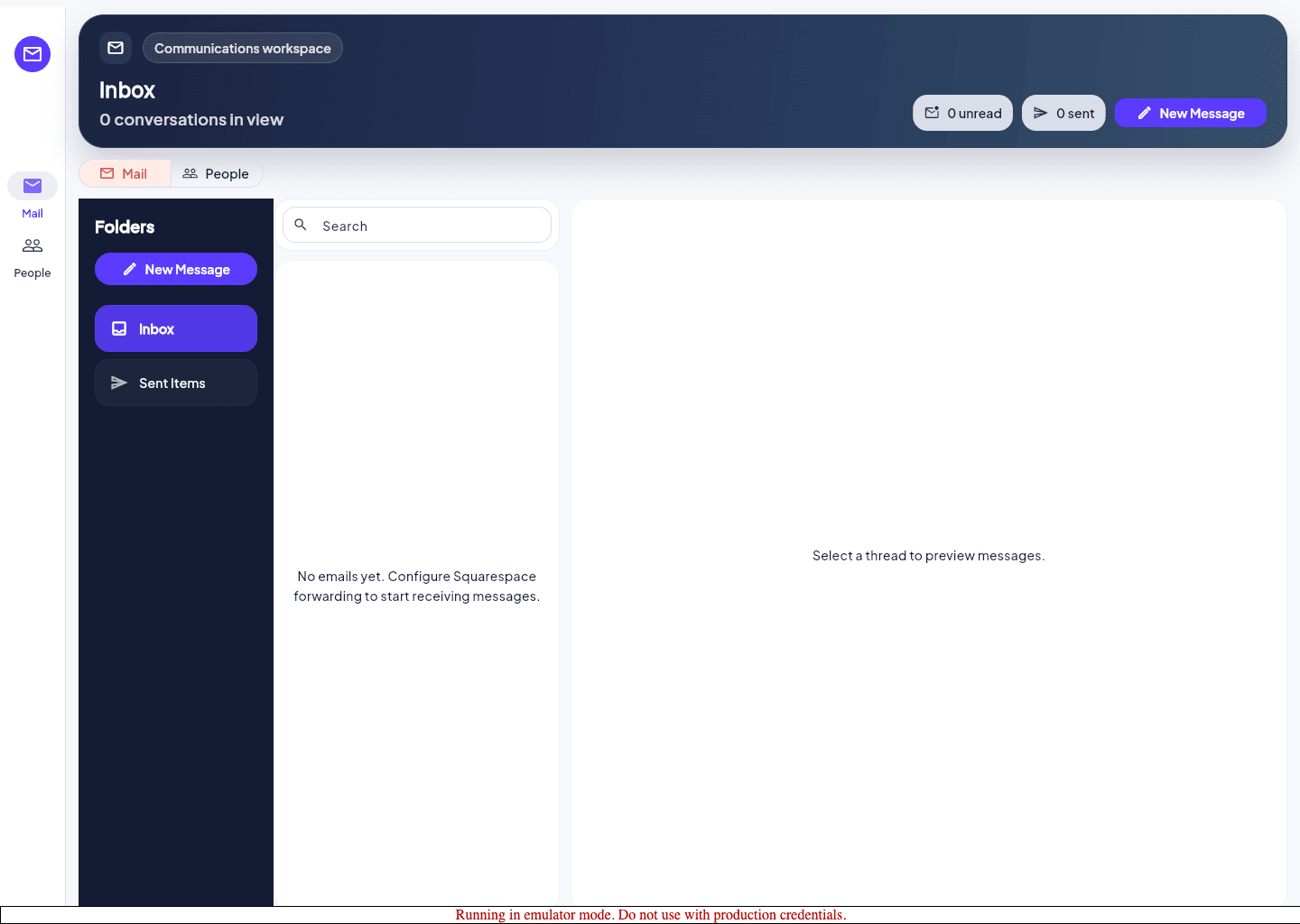
Step 1: communication workspace
mailbox
Step 2: mailbox