Create a task that another teammate can act on
- 1
Open Tasks from the navigation.
- 2
Select Add Task.
- 3
Enter a precise title, detail, due date, and priority.
- 4
Add reminders or attachments when they reduce back-and-forth.
- 5
Save the task and confirm it appears in the live queue.
Keep the queue current
- 1
Open the task when work starts, changes owner, or becomes blocked.
- 2
Update status, reminders, or supporting notes immediately.
- 3
Close or archive the task only after the real work is complete.
Expected result
- ✓Tasks stay current, visible, and actionable.
- ✓The next owner can see the title, due date, reminder, and supporting detail in one place.
Troubleshooting
- ⚠If a reminder fires without enough context, update the task detail instead of sending a second message elsewhere.
- ⚠If the task list looks empty, confirm the property scope and filters before recreating work.
- ⚠Use status updates as soon as reality changes so notifications stay trustworthy.
Guided screenshots
Reference views for this workflow.
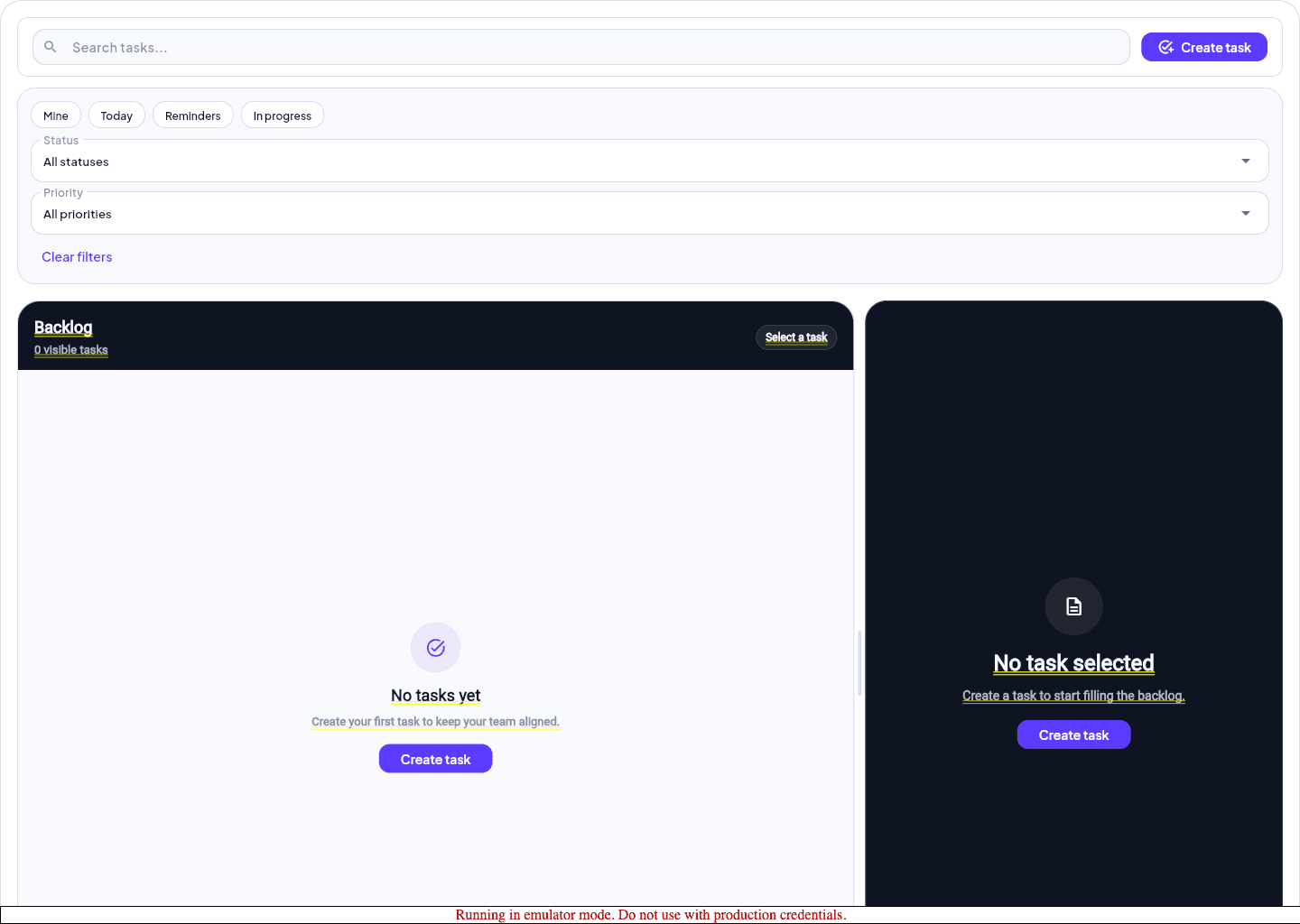 Step 1: task list