Daily OperationsAdmins, managers, and approval rolesinventoryValidated 73a3bb9
Manage inventory checks and approvals without losing audit context
Use inventory views and approval workflows to keep stock, exceptions, and sign-off activity visible at the property level.
Before you start
Treat inventory checks as an audit workflow, not a memory exercise.
- A property is selected.
- Your role can view inventory or approvals.
When to use this article
- A property check needs confirmation or adjustment.
- Inventory discrepancies need review before ordering or sign-off.
- You want a cleaner audit trail than ad hoc messages provide.
Applies to
- Inventory
- Inventory checks
- Approvals
Roles
- Admin
- Manager
- Approver
Run the inventory workflow
- 1
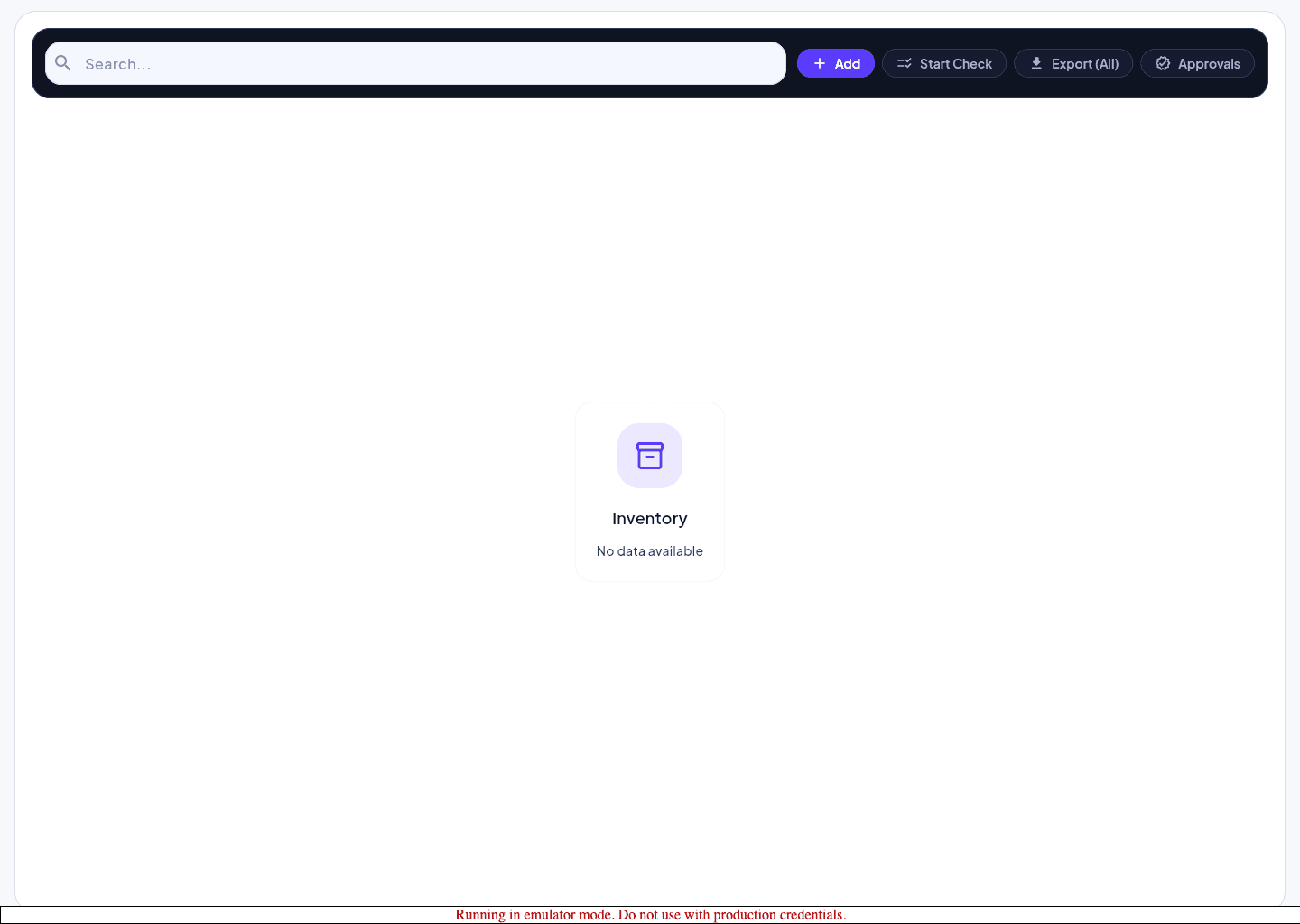
Open Inventory for the active property.
- 2
Review current items, statuses, and pending exceptions.
- 3
Record the needed change or check result.
- 4
Send the item into approval when the workflow requires sign-off.
- 5
Confirm the list reflects the updated state before leaving the page.
Protect the approval trail
- Keep exceptions tied to the inventory record instead of splitting the discussion across tools.
- Use property scope deliberately so approvals do not appear in the wrong operational context.
- Escalate missing approval capability as a role issue, not an inventory bug.
Expected result
- Inventory records are updated in the right property context.
- Approvers can review exceptions without reconstructing the whole history.
Troubleshooting
- If the wrong list appears, confirm property scope before editing items.
- If an approval path is unavailable, check the current role and workspace policy.
- Use comments or attachments inside the workflow when an exception will need later review.
Guided screenshots
Reference views for this workflow.

