Daily OperationsRoles with dashboard accessdashboardValidated 73a3bb9
Review the dashboard, calendar, and bookings at the start of the day
Use the dashboard as the operational control room for scope, KPIs, arrivals, departures, and booking activity.
Before you start
The dashboard is the starting point for most property-scoped work. Use it to decide what deserves attention first.
- A property is selected.
When to use this article
- You are starting the day or a shift.
- You need to understand the next arrivals, departures, or booking pressure quickly.
- You want the fastest route into task, maintenance, or guest follow-up.
Applies to
- Dashboard
- Calendar
- Bookings
Roles
- Admin
- Manager
- Editor
Run the daily review
- 1
Open Dashboard from the main navigation.
- 2
Scan the KPI and summary cards first.
- 3
Review the visible booking and revenue widgets for the active property.
- 4
Open Calendar to confirm upcoming arrivals, departures, and same-day turns.
- 5
Move into Bookings when you need record-level detail.
Turn dashboard signals into action
- Use cards, banners, and badges as the day’s routing layer.
- Move straight into tasks or incidents when the dashboard already tells you the next blocker.
- Expect finance visibility to differ by role and workspace policy.
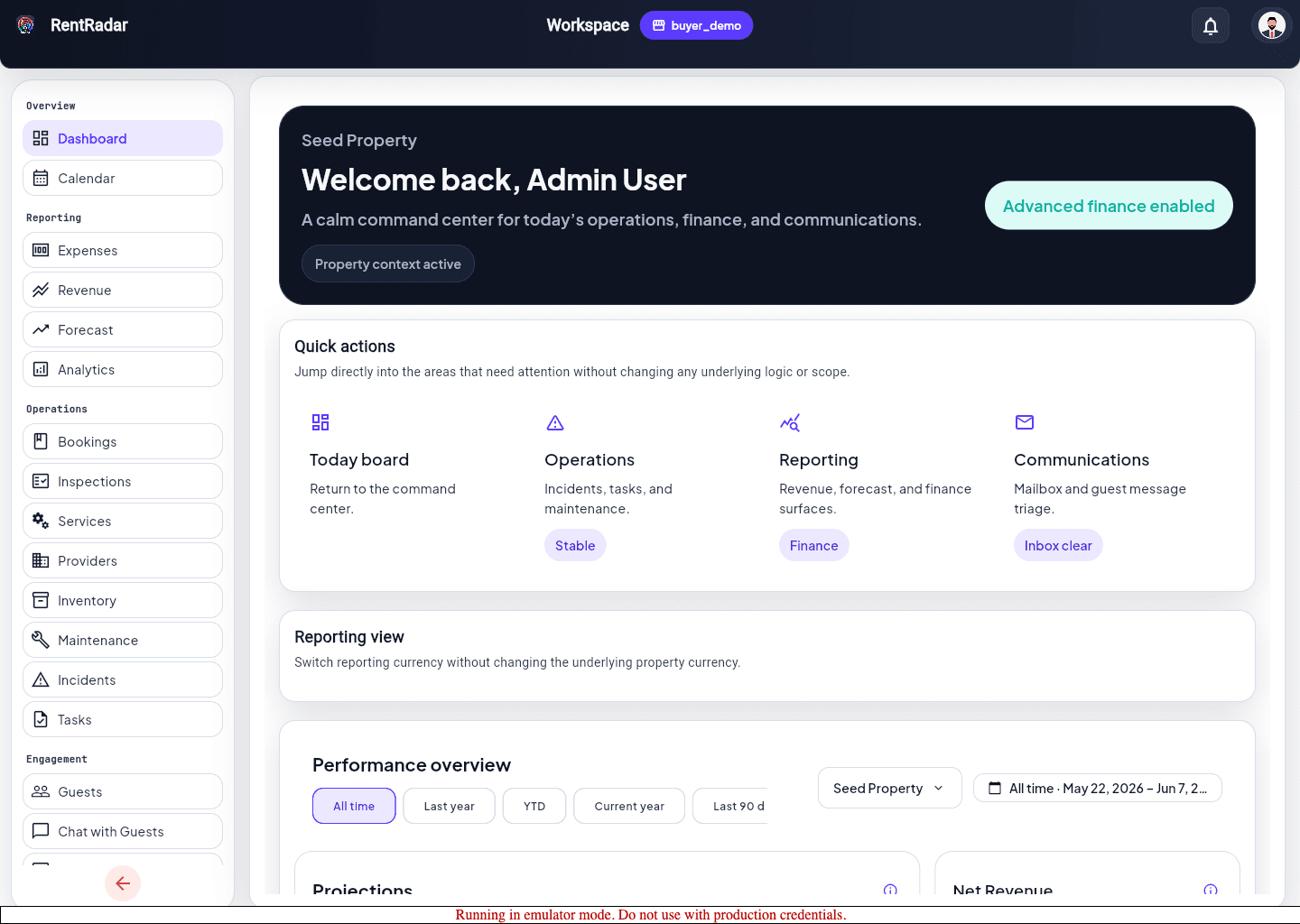
Expected result
- You leave the dashboard with a clear operational priority list.
- You know whether to drill into bookings, tasks, maintenance, or communication next.
Troubleshooting
- If widgets differ by user, confirm the role has the needed capability before reporting a missing feature.
- If the wrong property appears in charts or booking counts, reset the selected scope and reload.
- Treat banners and badges as routing signals, not decoration.
Guided screenshots
Reference views for this workflow.

