Finance & PerformanceOwners, managers, finance-aware adminsrevenue-and-analyticsValidated 73a3bb9
Monitor revenue, analytics, and subscription health from one review rhythm
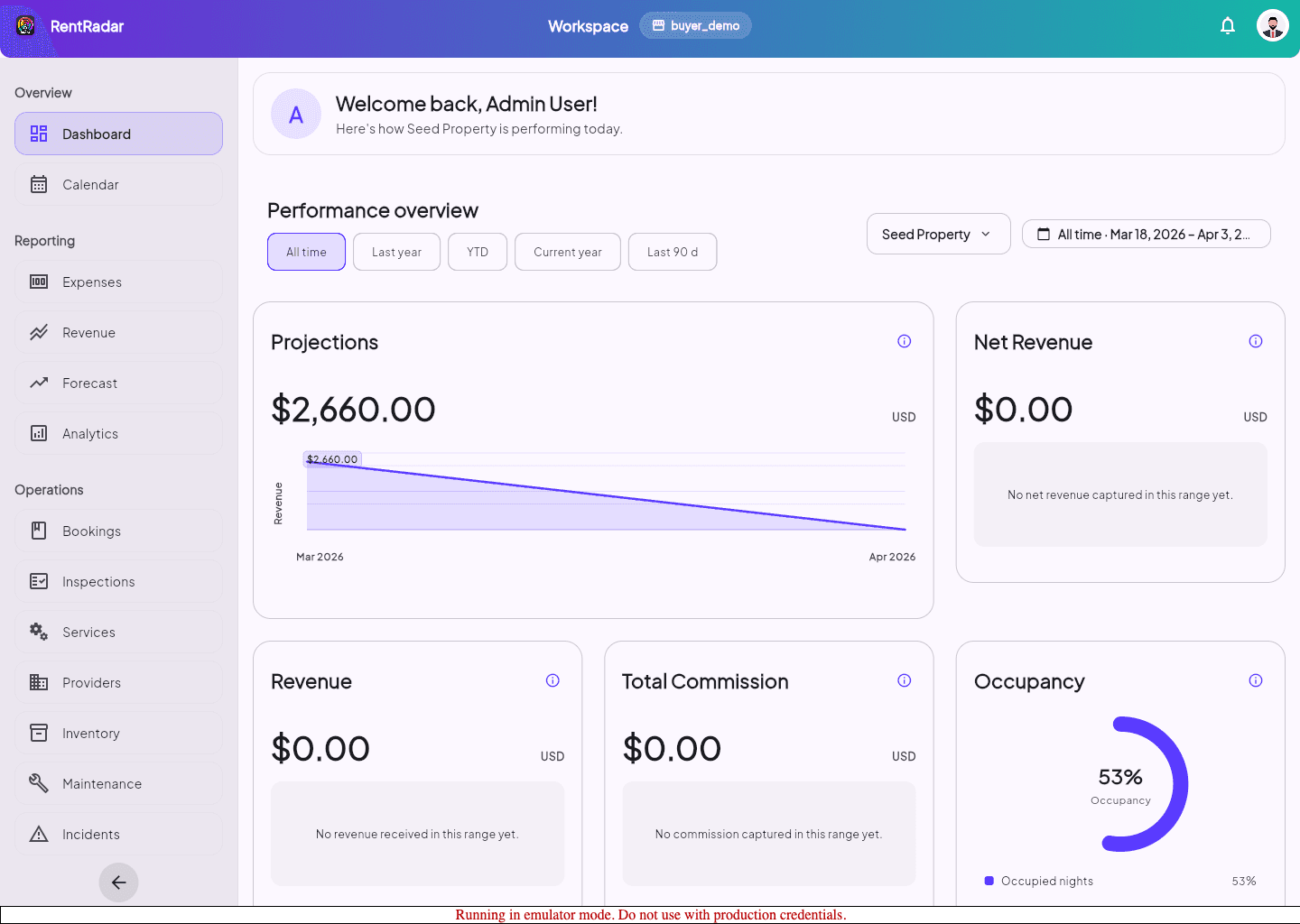
Use finance and performance views to understand bookings, revenue movement, reporting context, and subscription status without losing workspace alignment.
Before you start
Use one review rhythm for performance, access, and subscription health so finance issues do not stay siloed.
- Your role can view the relevant finance or analytics surfaces.
- A workspace and property are selected when required.
When to use this article
- You need to review commercial performance for an active property or workspace.
- A stakeholder wants a clearer explanation of revenue movement.
- You are checking whether finance access or subscription visibility matches expectations.
Applies to
- Revenue
- Analytics
- Expenses
- Subscription
Roles
- Owner
- Manager
- Admin
Run the finance review
- 1
Start from Dashboard or the relevant finance page for the active scope.
- 2
Review revenue, booking, and performance indicators first.
- 3
Move into analytics, expenses, invoicing, or subscription detail only when the summary tells you where the question lives.
- 4
Capture stakeholder follow-up with the scope, currency, and time range you used.
Keep reporting trustworthy
- State whether the number is property-scoped or workspace-scoped every time you share it.
- Use the app’s reporting currency and time-range controls consistently before exporting insight.
- Escalate access gaps separately from data-quality issues.
Expected result
- You can explain current financial performance and where to drill deeper next.
- You know whether the next action belongs in revenue, analytics, invoicing, or subscription support.
Troubleshooting
- If a finance widget is missing for one user, check capability and role before assuming the data failed to load.
- If totals look off, confirm currency context and selected property before exporting or escalating.
- Treat subscription visibility as workspace-scoped and operational KPIs as property-scoped unless the screen makes the boundary explicit.
Guided screenshots
Reference views for this workflow.