Workspace & Property SetupOwners, admins, managersworkspace-governanceValidated 73a3bb9
Align workspace memberships, property setup, and access roles
Use settings and setup views to keep workspace structure, property grouping, and role expectations aligned before onboarding more users.
Before you start
Use this article before changing access expectations for a larger team.
- You can reach Settings for the active workspace.
When to use this article
- You are adding a new workspace or property.
- A teammate can sign in but cannot see the expected route or property.
- The team needs a cleaner setup before scaling approvals or daily operations.
Applies to
- Workspace memberships
- Property setup
- Role-scoped access
Roles
- Owner
- Admin
- Manager
Review setup in the right order
- 1
Open Settings for the active workspace.
- 2
Confirm the workspace is grouping the intended properties.
- 3
Check who should have admin, manager, editor, or inspector access.
- 4
Validate property availability from a real user perspective before declaring setup complete.
Keep access changes operationally safe
- Make one membership or property-scope change at a time and test it.
- Use direct role language when documenting who should see finance, mailbox, or inspections.
- Route unresolved edge cases into the troubleshooting collection instead of guessing.
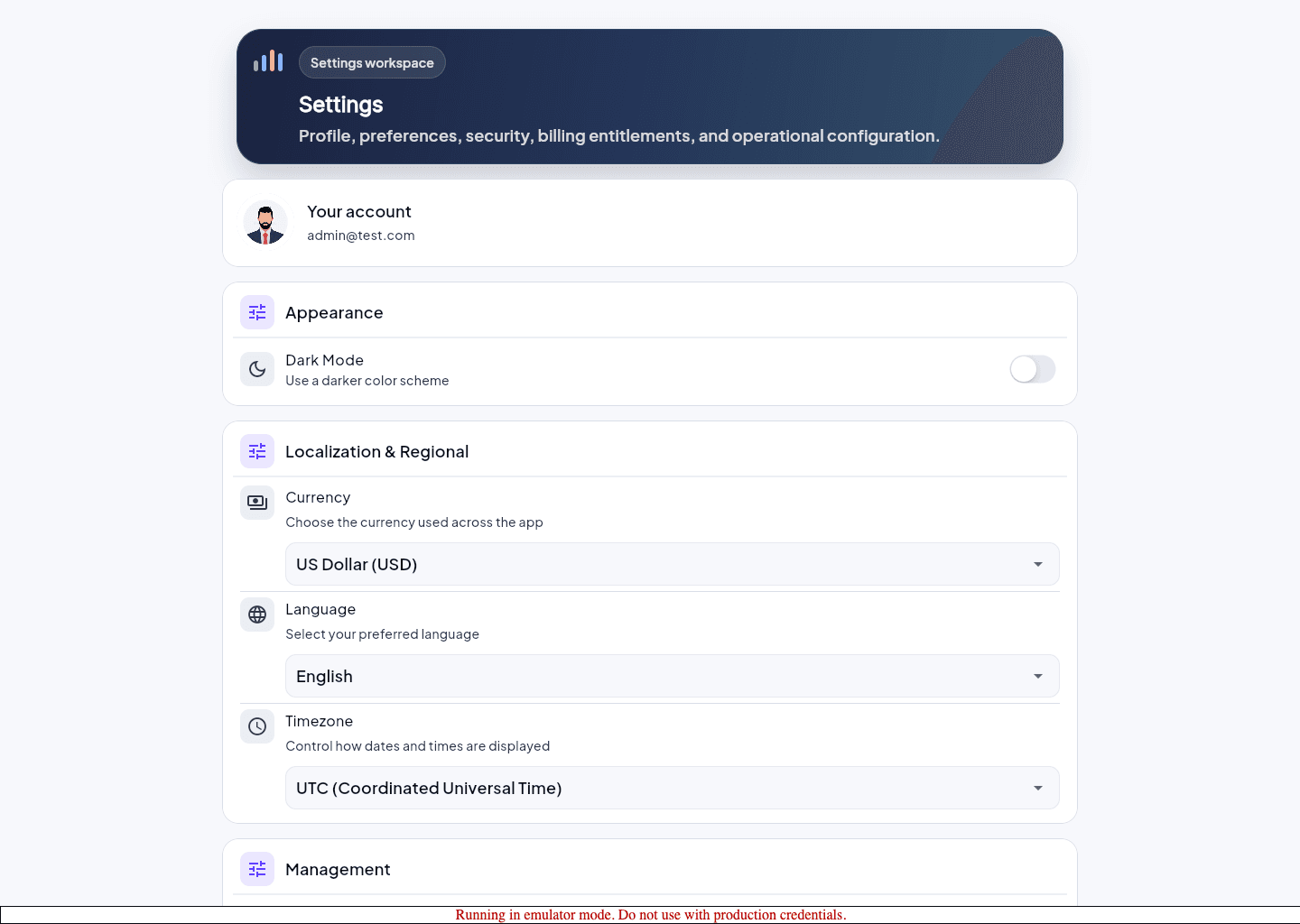
Expected result
- Workspace structure matches the way the team groups properties and responsibilities.
- You know whether the next change belongs in settings, memberships, or troubleshooting.
Troubleshooting
- Do not treat a missing property as a content problem until membership and role checks are complete.
- If a role lacks capability for a route, the app may redirect instead of showing a clear empty state.
- Document who owns workspace-level versus property-level changes before opening support tickets.
Guided screenshots
Reference views for this workflow.

