Workspace & Property SetupAll property-scoped usersproperty-selectionValidated 73a3bb9
Select the right workspace and property before opening operational pages
Confirm buyer and property scope before loading dashboard, tasks, maintenance, or other property-scoped routes.
Before you start
Most reported missing-data issues are really scope issues. Confirm workspace and property first.
- You can sign in successfully.
- At least one workspace and property are assigned to your account.
When to use this article
- You have just signed in.
- The app sends you back to landing-page?select=1.
- Data looks correct for the workspace but wrong for the property.
Applies to
- Landing page
- Workspace scope
- Property scope
Roles
- Admin
- Manager
- Editor
- Inspector
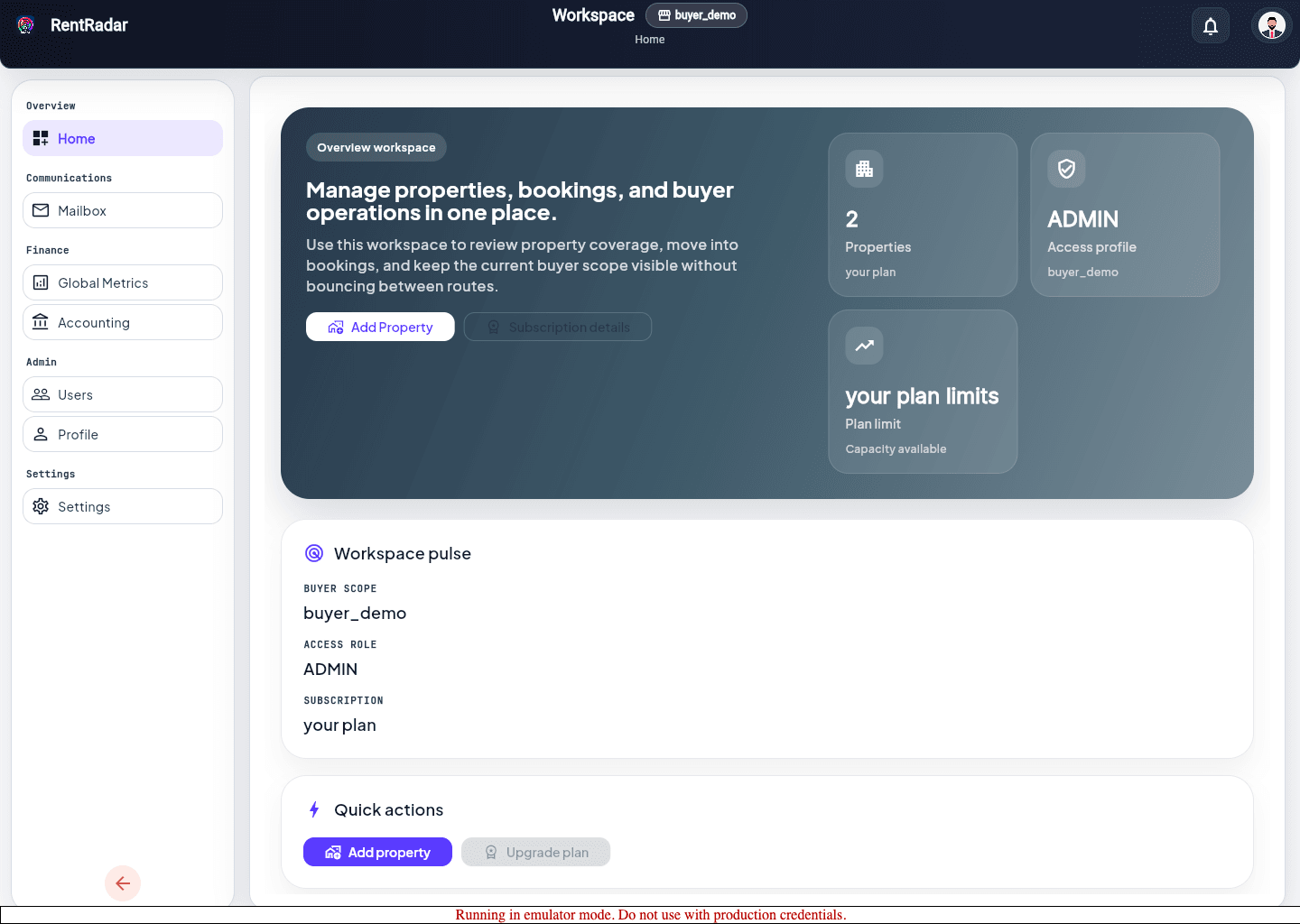
Select the active scope
- 1
Open the landing page or the selector shown after sign-in.
- 2
Review the available properties inside the active workspace.
- 3
Choose the property you need for today’s work.
- 4
Confirm the property badge or header context before opening the next page.
Move into work only after scope is stable
- Open Dashboard, Tasks, Maintenance, Inventory, or Bookings only after property scope is saved.
- If another page redirects you back to selection, finish selection there instead of retrying the same route repeatedly.
- Treat a repeated redirect as a sign the app still lacks a required buyer or property value.
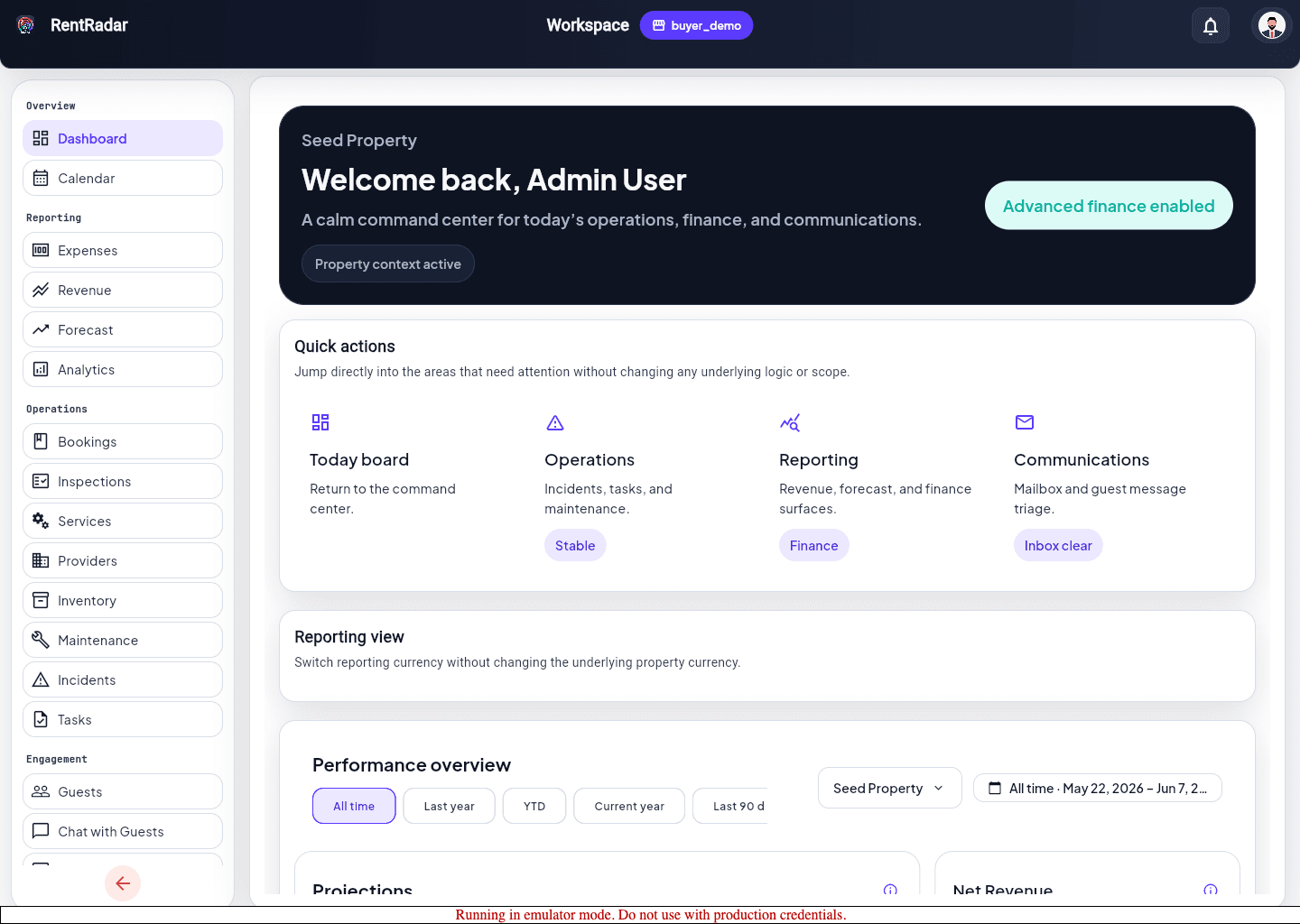
Expected result
- The correct property scope is stored before you open dashboard or another workspace.
- Property-scoped routes stop redirecting back to the selector.
Troubleshooting
- Selecting only the workspace is not enough for dashboard, maintenance, inventory, and most operational pages.
- Mailbox and some tax flows can behave differently, so confirm the route requirement before assuming the selector is broken.
- If the needed property is missing, escalate it as an access or membership issue rather than creating duplicate data.
Guided screenshots
Reference views for this workflow.