Enroll from Settings
- 1
Sign in and open Settings.
- 2
Locate the two-factor section and start enrollment.
- 3
Scan the QR code or copy the setup key into your authenticator app.
- 4
Enter the generated code and save the recovery information.
Prove the challenge flow works
- 1
Sign out after enrollment completes.
- 2
Sign back in with email and password.
- 3
Enter the six-digit challenge code.
- 4
Continue only after the app returns you to a valid workspace route.
Expected result
- ✓The account is enrolled in two-factor verification.
- ✓A fresh sign-in shows the challenge page and accepts the verification code.
Troubleshooting
- ⚠If the enrollment page cannot find a buyer or workspace, re-select scope from the landing page first.
- ⚠If codes fail repeatedly, verify the authenticator clock is synced and restart enrollment.
- ⚠Keep recovery codes outside the app so you are not blocked during the next session.
Guided screenshots
Reference views for this workflow.
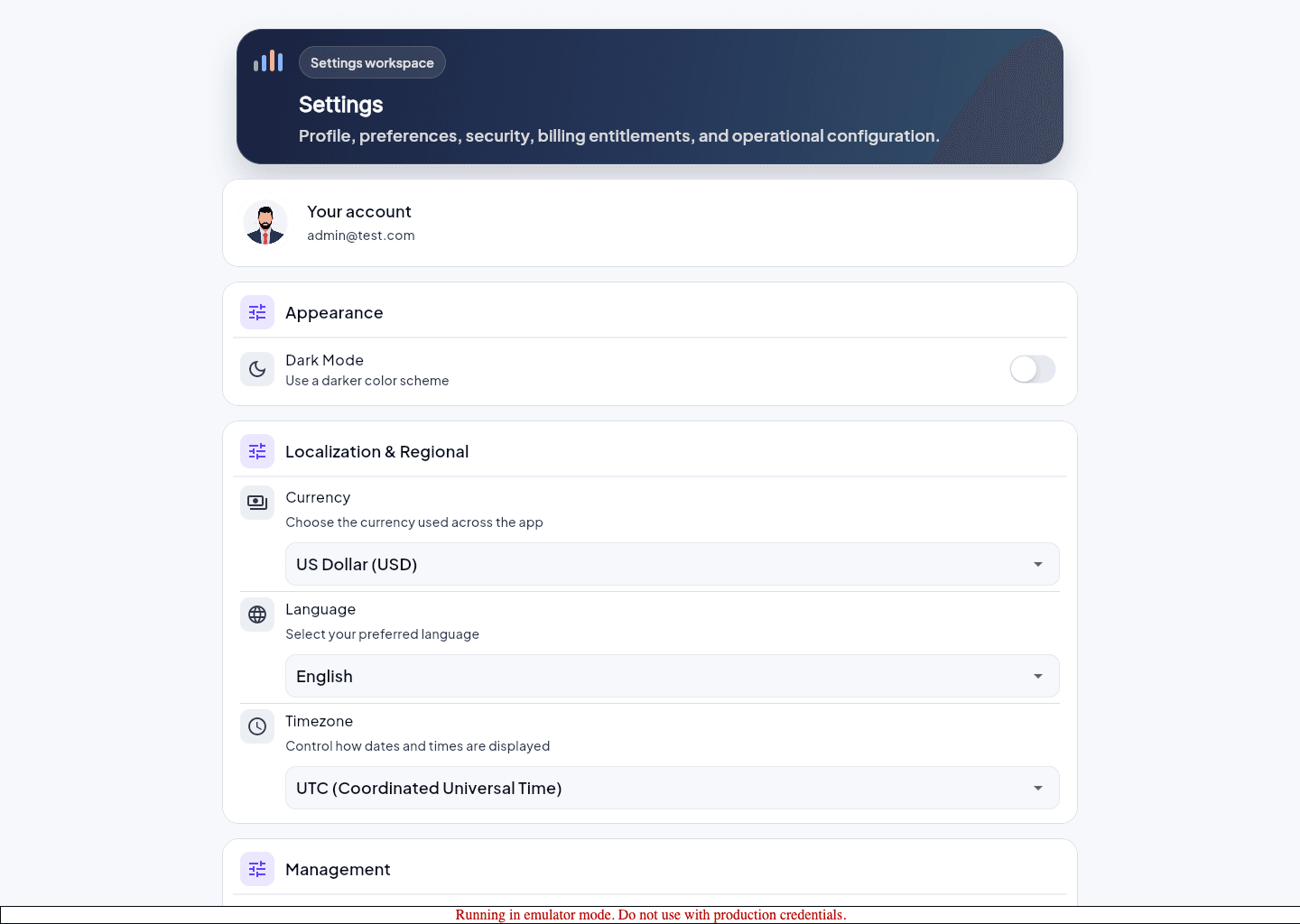 Step 1: settings security
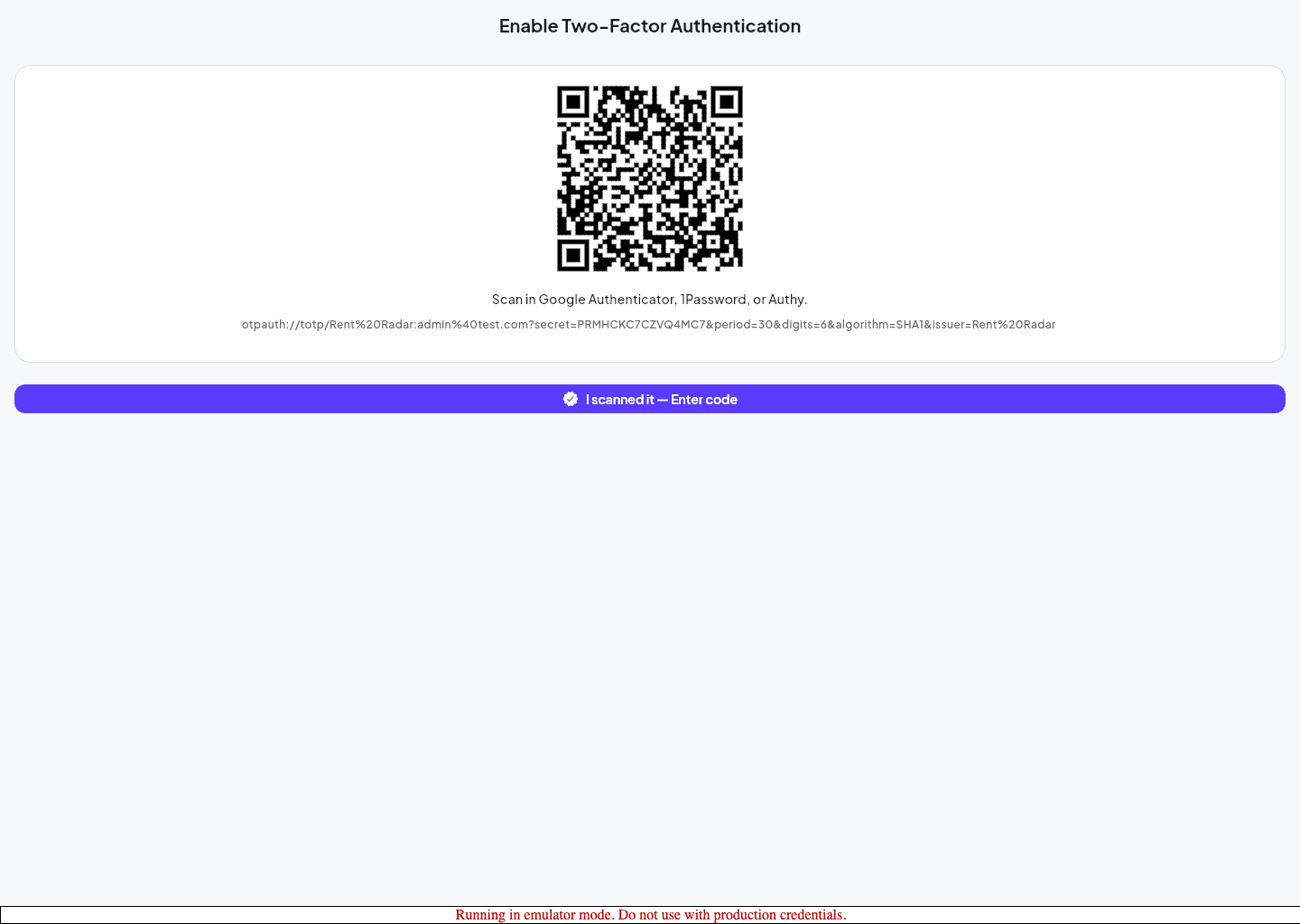 Step 2: two factor wizard