Review the security and notification surfaces
- 1
Open Settings and review the security section first.
- 2
Confirm your two-factor and account details are current.
- 3
Open Notifications and scan unread or action-driven items.
- 4
Use the notification list as a routing tool into tasks, maintenance, incidents, or booking follow-up.
Keep sessions predictable
- Expect an inactivity warning before automatic sign-out.
- Save edits before stepping away from long-running admin screens.
- Treat repeated sign-outs as a workflow issue worth documenting in the troubleshooting collection.
Expected result
- ✓You know where security settings and notification views live.
- ✓The active account can stay productive without ignoring important alerts.
Troubleshooting
- ⚠If the notifications page opens but shows the wrong property context, re-select scope before treating it as missing data.
- ⚠If you are signed out after inactivity, save work earlier and expect the idle warning dialog before timeout.
- ⚠If a mobile or browser notification seems stale, confirm the corresponding workflow is updated inside the app.
Guided screenshots
Reference views for this workflow.
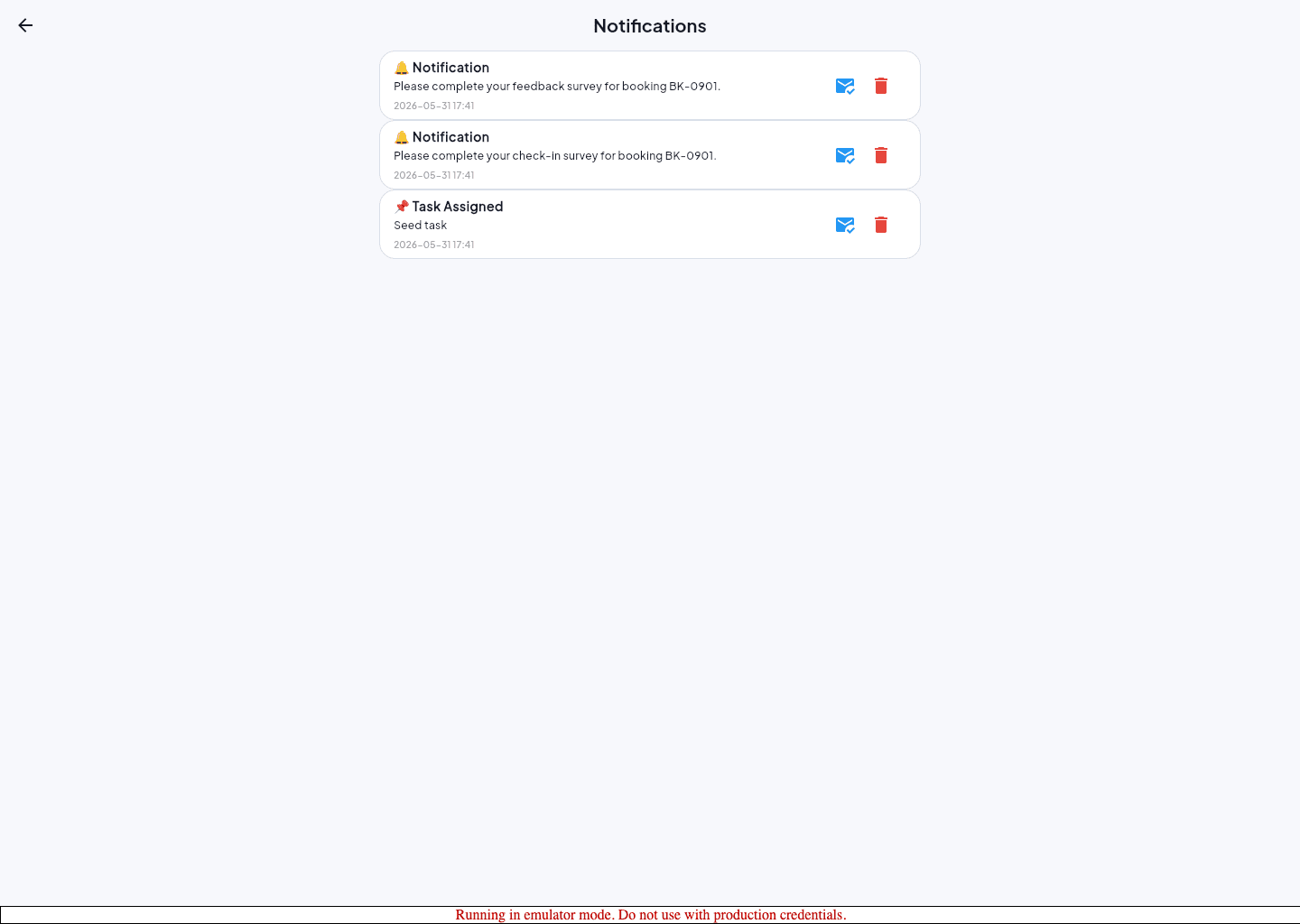 Step 1: notifications
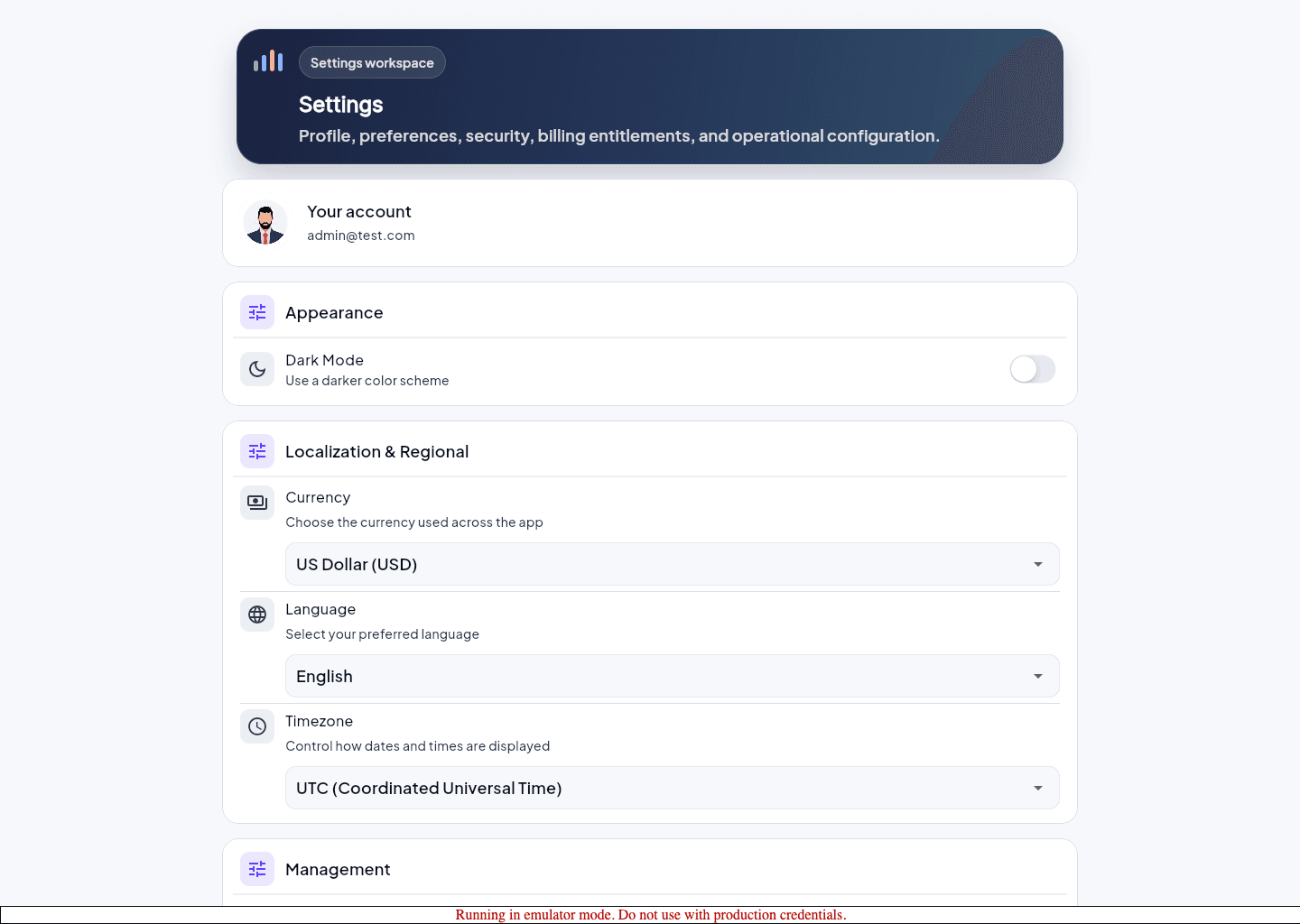 Step 2: settings security